IPTV Setup Guide: Easy Installation for Beginners in Minutes iptvfree24
February 25, 2026
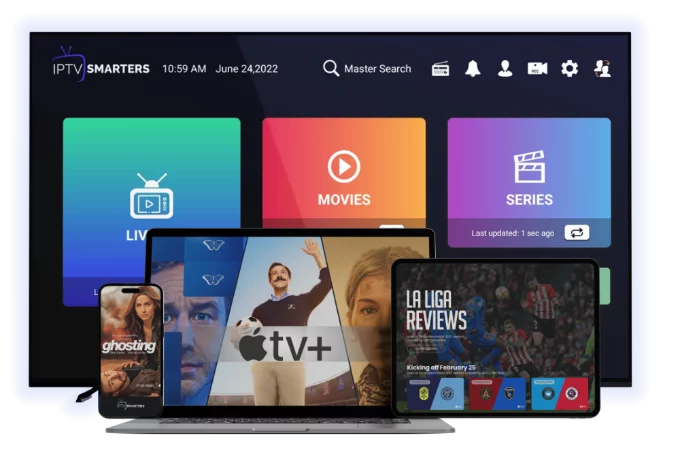
1. Get Started with IPTV in Minutes
Setting up IPTV has never been easier! This comprehensive guide walks you through installing and configuring IPTV services on any device, from smart TVs to mobile phones, with simple step-by-step instructions.
2. Before You Begin: Requirements Check
Internet Connection: Stable broadband with at least 10 Mbps download speed.
Compatible Device: Smart TV, streaming box, smartphone, tablet, or computer.
IPTV Subscription: Active account with login credentials.
Device Storage: Minimal space required for app installation.
3. Smart TV Setup (Samsung, LG, Android TV)
Step 1: Press the Smart Hub or Home button on your remote.
Step 2: Navigate to the app store (Samsung Apps, LG Content Store, or Google Play Store).
Step 3: Search for your IPTV app or provider's official app.
Step 4: Download and install the application.
Step 5: Launch the app and enter your login credentials.
Step 6: Configure video quality and audio preferences.
4. Fire TV Stick & Fire TV Setup
Step 1: Turn on your Fire TV device and ensure it's connected to Wi-Fi.
Step 2: From the home screen, go to 'Find' and select 'Search'.
Step 3: Search for your IPTV app or use the Amazon Appstore.
Step 4: Select 'Get' or 'Download' to install the app.
Step 5: Open the app and sign in with your IPTV account details.
Step 6: Enable any premium features or additional services.
5. Roku Device Installation
Step 1: Press the Home button on your Roku remote.
Step 2: Scroll to 'Streaming Channels' in the menu.
Step 3: Select 'Search Channels' and enter your IPTV app name.
Step 4: Choose the app from search results and select 'Add Channel'.
Step 5: Launch the channel and complete the setup process.
Step 6: Link your IPTV account for full access.
6. Android TV Box Configuration
Step 1: Power on your Android TV box and connect to your TV.
Step 2: Open the Google Play Store from the home screen.
Step 3: Search for and install your preferred IPTV application.
Step 4: Grant necessary permissions for the app to function.
Step 5: Sign in with your IPTV service credentials.
Step 6: Customize settings for optimal performance.
7. Mobile Device Setup (iOS & Android)
Step 1: Open the App Store (iOS) or Google Play Store (Android).
Step 2: Search for your IPTV app and tap 'Get' or 'Install'.
Step 3: Launch the app after installation completes.
Step 4: Enter your username and password to sign in.
Step 5: Allow notifications and location permissions if prompted.
Step 6: Set up any biometric login options for convenience.
8. Computer & Laptop Installation
Step 1: Visit your IPTV provider's website or app store.
Step 2: Download the desktop application for Windows or macOS.
Step 3: Run the installer and follow the on-screen instructions.
Step 4: Launch the application and log in to your account.
Step 5: Configure display settings and audio preferences.
Step 6: Test streaming with different channels.
9. Apple TV Setup Guide
Step 1: Turn on your Apple TV and navigate to the App Store.
Step 2: Search for IPTV apps compatible with tvOS.
Step 3: Download and install your chosen IPTV application.
Step 4: Open the app and sign in with your credentials.
Step 5: Enable Siri integration for voice control.
Step 6: Set up Family Sharing if using multiple Apple devices.
10. Xbox & PlayStation Gaming Console Setup
Step 1: Access the console's app store (Microsoft Store or PlayStation Store).
Step 2: Search for IPTV applications or media players.
Step 3: Download and install compatible IPTV software.
Step 4: Launch the app and authenticate your account.
Step 5: Configure controller shortcuts for easy navigation.
Step 6: Test gaming and IPTV multitasking features.
11. Network Optimization for Best Performance
Wired Connection: Use Ethernet for most stable streaming.
Wi-Fi Optimization: Position router centrally and reduce interference.
Speed Testing: Verify your internet speed meets IPTV requirements.
VPN Configuration: Set up VPN for enhanced privacy and access.
12. Troubleshooting Common Setup Issues
App Won't Install: Clear cache, restart device, check storage space.
Login Problems: Verify credentials, check account status, reset password.
Buffering Issues: Test internet speed, reduce concurrent devices, adjust quality.
No Sound/Video: Check connections, update apps, restart devices.
13. Advanced Configuration Options
EPG Setup: Configure electronic program guide for better navigation.
Multi-Device Sync: Link accounts across devices for seamless experience.
Custom DNS: Optimize DNS settings for faster channel loading.
Background Playback: Enable features for uninterrupted streaming.
14. Security Best Practices
Strong Passwords: Use complex passwords for your IPTV account.
Two-Factor Authentication: Enable 2FA when available.
Regular Updates: Keep apps and devices updated for security.
Secure Networks: Avoid public Wi-Fi for IPTV streaming.
15. Getting Help & Support
Provider Support: Contact your IPTV provider for account-specific issues.
Community Forums: Join user communities for tips and troubleshooting.
Online Tutorials: Access video guides for visual setup instructions.
Professional Installation: Consider paid setup services for complex configurations.
16. Enjoy Your IPTV Experience
Once setup is complete, explore your IPTV service's features and start enjoying premium entertainment. Most services offer welcome tutorials and customer support to help you get the most out of your subscription.
Setting up IPTV has never been easier! This comprehensive guide walks you through installing and configuring IPTV services on any device, from smart TVs to mobile phones, with simple step-by-step instructions.
2. Before You Begin: Requirements Check
Internet Connection: Stable broadband with at least 10 Mbps download speed.
Compatible Device: Smart TV, streaming box, smartphone, tablet, or computer.
IPTV Subscription: Active account with login credentials.
Device Storage: Minimal space required for app installation.
3. Smart TV Setup (Samsung, LG, Android TV)
Step 1: Press the Smart Hub or Home button on your remote.
Step 2: Navigate to the app store (Samsung Apps, LG Content Store, or Google Play Store).
Step 3: Search for your IPTV app or provider's official app.
Step 4: Download and install the application.
Step 5: Launch the app and enter your login credentials.
Step 6: Configure video quality and audio preferences.
4. Fire TV Stick & Fire TV Setup
Step 1: Turn on your Fire TV device and ensure it's connected to Wi-Fi.
Step 2: From the home screen, go to 'Find' and select 'Search'.
Step 3: Search for your IPTV app or use the Amazon Appstore.
Step 4: Select 'Get' or 'Download' to install the app.
Step 5: Open the app and sign in with your IPTV account details.
Step 6: Enable any premium features or additional services.
5. Roku Device Installation
Step 1: Press the Home button on your Roku remote.
Step 2: Scroll to 'Streaming Channels' in the menu.
Step 3: Select 'Search Channels' and enter your IPTV app name.
Step 4: Choose the app from search results and select 'Add Channel'.
Step 5: Launch the channel and complete the setup process.
Step 6: Link your IPTV account for full access.
6. Android TV Box Configuration
Step 1: Power on your Android TV box and connect to your TV.
Step 2: Open the Google Play Store from the home screen.
Step 3: Search for and install your preferred IPTV application.
Step 4: Grant necessary permissions for the app to function.
Step 5: Sign in with your IPTV service credentials.
Step 6: Customize settings for optimal performance.
7. Mobile Device Setup (iOS & Android)
Step 1: Open the App Store (iOS) or Google Play Store (Android).
Step 2: Search for your IPTV app and tap 'Get' or 'Install'.
Step 3: Launch the app after installation completes.
Step 4: Enter your username and password to sign in.
Step 5: Allow notifications and location permissions if prompted.
Step 6: Set up any biometric login options for convenience.
8. Computer & Laptop Installation
Step 1: Visit your IPTV provider's website or app store.
Step 2: Download the desktop application for Windows or macOS.
Step 3: Run the installer and follow the on-screen instructions.
Step 4: Launch the application and log in to your account.
Step 5: Configure display settings and audio preferences.
Step 6: Test streaming with different channels.
9. Apple TV Setup Guide
Step 1: Turn on your Apple TV and navigate to the App Store.
Step 2: Search for IPTV apps compatible with tvOS.
Step 3: Download and install your chosen IPTV application.
Step 4: Open the app and sign in with your credentials.
Step 5: Enable Siri integration for voice control.
Step 6: Set up Family Sharing if using multiple Apple devices.
10. Xbox & PlayStation Gaming Console Setup
Step 1: Access the console's app store (Microsoft Store or PlayStation Store).
Step 2: Search for IPTV applications or media players.
Step 3: Download and install compatible IPTV software.
Step 4: Launch the app and authenticate your account.
Step 5: Configure controller shortcuts for easy navigation.
Step 6: Test gaming and IPTV multitasking features.
11. Network Optimization for Best Performance
Wired Connection: Use Ethernet for most stable streaming.
Wi-Fi Optimization: Position router centrally and reduce interference.
Speed Testing: Verify your internet speed meets IPTV requirements.
VPN Configuration: Set up VPN for enhanced privacy and access.
12. Troubleshooting Common Setup Issues
App Won't Install: Clear cache, restart device, check storage space.
Login Problems: Verify credentials, check account status, reset password.
Buffering Issues: Test internet speed, reduce concurrent devices, adjust quality.
No Sound/Video: Check connections, update apps, restart devices.
13. Advanced Configuration Options
EPG Setup: Configure electronic program guide for better navigation.
Multi-Device Sync: Link accounts across devices for seamless experience.
Custom DNS: Optimize DNS settings for faster channel loading.
Background Playback: Enable features for uninterrupted streaming.
14. Security Best Practices
Strong Passwords: Use complex passwords for your IPTV account.
Two-Factor Authentication: Enable 2FA when available.
Regular Updates: Keep apps and devices updated for security.
Secure Networks: Avoid public Wi-Fi for IPTV streaming.
15. Getting Help & Support
Provider Support: Contact your IPTV provider for account-specific issues.
Community Forums: Join user communities for tips and troubleshooting.
Online Tutorials: Access video guides for visual setup instructions.
Professional Installation: Consider paid setup services for complex configurations.
16. Enjoy Your IPTV Experience
Once setup is complete, explore your IPTV service's features and start enjoying premium entertainment. Most services offer welcome tutorials and customer support to help you get the most out of your subscription.